Chat Apps
FermiLink supports remote control via chat apps through the Telegram gateway.
This gives you an “agent in your pocket” workflow: you chat on your phone, but
the actual computation happens on the machine running fermilink gateway
(your laptop/workstation/HPC).
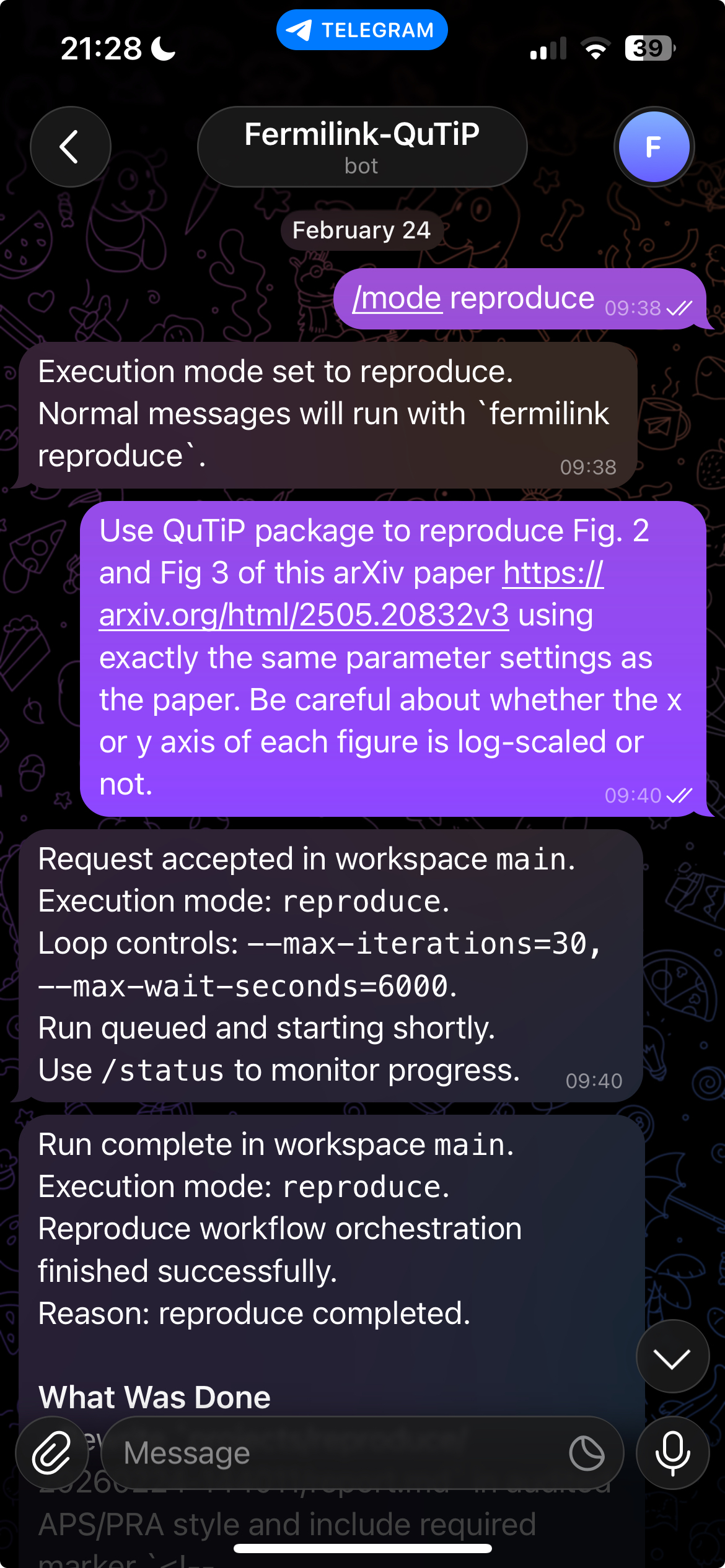
Unlike the Web UI (which streams the agent’s chain of thought), the gateway is optimized for remote control: it acknowledges queued requests immediately and sends a final completion message (plus files/figures) when a run finishes. Internal reasoning steps are not forwarded to the user.
Step-by-Step Setup
If you have already completed Installation, this is the only workflow you need to get the Telegram bot working.
Configure in Telegram
Open your Telegram app, search for
@BotFather, and type in/startand then/newbot. Follow the instructions to provide the username of the bot and copy the provided bot token.In the Telegram app, search for
@get_telegram_id_smppcenter_bot, and type in/start. Copy the provided numerical User ID.
Configure in working machines
Open the terminal of the machine you runs Fermilink:
export FERMILINK_GATEWAY_TELEGRAM_TOKEN="<token-from-@BotFather>"

# optional: restrict which Telegram accounts can talk to the bot
export FERMILINK_GATEWAY_TELEGRAM_ALLOW_FROM="<numeric-id-from-@get_telegram_id_smppcenter_bot>"

# allow fermilink to communicate with Telegram API
fermilink gateway --max-wait-seconds 6000 --max-iterations 10 --hpc-profile hpc_profile.json
By default, the gateway mode will wait for up to 6000 seconds (100 minutes) for waiting the PID/SLRUM jobs, and allow up to 10 iterations in each loop mode. You can adjust these parameters as needed. For example, for simulations involving long-running HPC jobs, you may want to increase the max wait time and iteration caps.
You can also set the above variables in your shell profile (e.g., ~/.bashrc) to avoid exporting them every time:
# add the following lines to ~/.bashrc or ~/.zshrc
export FERMILINK_GATEWAY_TELEGRAM_TOKEN="<token-from-@BotFather>"
export FERMILINK_GATEWAY_TELEGRAM_ALLOW_FROM="<numeric-id-from-@get_telegram_id_smppcenter_bot>"
HPC default settings
If --hpc-profile hpc_profile.json is provided for fermilink gateway, the gateway will use the specified HPC profile to submit and monitor SLURM jobs. Otherwise, it will run all tasks locally using PID controls for waiting and iteration (if the user does not require to run SLURM jobs).
A sample HPC profile (hpc_profile.json) looks like this:
{
   "slurm_default_partition": "shared",
   "slurm_defaults": "--nodes=1 --ntasks=1 --ntasks-per-node=1 --cpus-per-task=1 --time=24:00:00",
   "slurm_resource_policy": "Use serial/single-node defaults unless the method explicitly requires MPI or multi-node scaling"
}
Chat in Telegram for simulations
Finally, open Telegram on your phone, chat with your new FermiLink bot, and run:
/list
If you see the reply, the gateway is ready.
What fermilink gateway launches
fermilink gateway starts one long-running local process that:
listens for Telegram messages sent to your bot;
queues requests quickly (so you can disconnect from the network and come back);
runs the requested workflow (
exec/loop/research/reproduce) on the machine where the gateway is running;replies with the final completion message and attaches generated artifacts.
Logs are written under $FERMILINK_RUNTIME_ROOT/logs/.
Using the bot
The gateway keeps each Telegram chat bound to a sticky workspace repo and supports multiple run modes.
Core commands:
/new [name]: create and switch to a new workspace (with a fresh memory for a different job)./mode <exec|loop|research|reproduce>: set the default run mode for normal messages in this chat. By default, the gateway starts inexecmode, which is good for quick one-turn runs./status: show current gateway state (mode, workspace, run status)./stop: stop the active run and clear queued runs for this chat./loopcfg: show or update loop controls (max iterations + wait caps)./reply <summary|agent|both>: control the completion message style./use <name-or-id>,/where,/list: manage and inspect workspaces.
Practical starting pattern:
Start in
execmode (default) for quick one-turn runs.Switch to
loopmode when you need autonomous iteration and waiting for local PID or HPC SLURM jobs.Use
research/reproducewhen you want a workflow that produces a final report artifact at a research paper scale, which is great if you need to sleep or travel while the agent is working.
Advanced: An Army of FermiLink Bots
You can simutaneous control many FermiLink bots by running multiple fermilink gateway processes with different Telegram bot tokens and HPC profiles. This allows you to have an army of FermiLink agents working on different tasks at the same time, all controlled remotely from your phone.
For example, you can submit the following long-run bash job to your HPC:
#!/bin/bash
#SBATCH --job-name=gateway_lammps
#SBATCH --partition=shared
#SBATCH --time=4-00:00:00
#SBATCH --nodes=1
#SBATCH --ntasks=1
#SBATCH --cpus-per-task=1
#SBATCH --output=fermilink-%j.out

export FERMILINK_GATEWAY_TELEGRAM_ALLOW_FROM="<numeric-id-from-@get_telegram_id_smppcenter_bot>"

FERMILINK_WORKSPACES_ROOT=$SCRATCH/fermilink/workspaces_lammps \
fermilink gateway --telegram-token "xxxx" \
   --session-store $FERMILINK_HOME/runtime/chat_sessions_lammps.json \
   --max-iterations 30 --max-wait-seconds 36000 \
   --hpc-profile $HOME/hpc_profile.json
Then, if you create another telegram bot with a different token, you can modify the above script (changing workspaces_lammps, xxxx and chat_sessions_lammps above) and submit another job.
See HPC Tutorial for more details about this advanced setting.
Where your work lives
Each Telegram chat maps to one workspace repo under:
$FERMILINK_WORKSPACES_ROOT/<session_id>/repo
The default $FERMILINK_WORKSPACES_ROOT path is ~/.fermilink/.
Inside that repo you will typically see:
projects/memory.md: unified short-term/long-term memory for this chatprojects/: recommended place for research folders and reportstelegram_uploads/: files you send to the bot (see below)
To find recent workspaces on disk:
FERMILINK_WORKSPACES_ROOT=$HOME/.fermilink/workspaces
ls -t "$FERMILINK_WORKSPACES_ROOT" | head
Then inspect one session:
ls "$FERMILINK_WORKSPACES_ROOT/<session_id>/repo"
File uploads
Send a Telegram document or photo to the bot:
the file is downloaded into the active workspace under
telegram_uploads/;optional caption text is treated as the run message;
if you send an upload with no text/caption, the gateway confirms the upload only.
Troubleshooting (common first-run issues)
Access denied.: your account is not in the allowlist; update
FERMILINK_GATEWAY_TELEGRAM_ALLOW_FROMand restart the gateway.Runs fail immediately: verify authentication for the selected provider (for example
codex loginorclaude login) on the machine running the gateway.Missing outputs/figures: ask the agent to write files under
outputs/orprojects/so they can be detected and attached.
See also
Installation for full setup.
Advanced Configuration for runtime variables.
Architecture for request flow and workspace contracts.