Laptop Tutorial
This tutorial shows how to run FermiLink locally on a laptop/workstation (macOS/Linux). It is designed to be self-contained, so you can follow it end-to-end without reading other pages.
This tutorial assumes the default FermiLink runtime location is located at:
~/.fermilink
Note
If you want a different runtime location later, see Advanced Configuration. This tutorial intentionally sticks to the defaults for a quick laptop use.
Prerequisites
You need:
Python
>= 3.11gitonPATH(workspaces are git repos)Node.js +
npm(or Homebrew on macOS) for local agent provider CLIs
Step 1. Create a clean Python environment (recommended)
Use conda environment so your laptop test does not modify your system Python:
conda create -n fermilink python=3.11 -y
conda activate fermilink
Step 2. Install agent provider CLI and authenticate
FermiLink currently supports OpenAI Codex, Claude, and Gemini as the agent providers. Install and authenticate the provider you want to use:
# Codex option
npm i -g @openai/codex
codex login
# Please read the official documentation of Claude and Gemini for installation.
# Claude login
claude
# Gemini login
gemini
Note
On macOS, you can also install the Codex CLI via Homebrew (if preferred):
brew install codex
Step 3. Install FermiLink
Clone the repo and install the CLI into your active Python environment:
pip install fermilink
Quick check:
fermilink --help
Step 4. Install a scientific package knowledge base
FermiLink routes each user request to an installed scientific package knowledge base, so install at least one package knowledge base before you run anything.
This laptop tutorial uses qutip because it runs well locally and is a good
fit for small “hello world” quantum simulations:
# discover packages in the default curated channel
fermilink avail qutip

# install and set a default package for new sessions
fermilink install qutip --activate

# verify installed packages
fermilink list
Note
fermilink install downloads the knowledge base (source + skills) into
~/.fermilink/scientific_packages. It does not necessarily install the
underlying runtime library used for execution.
Install in Python to really install the package:
pip install qutip
If you want to use a different scientific package, see the built-in catalog: Built-in Supported Scientific Packages.
Step 5. Set agent runtime policy (sandbox)
By default, FermiLink runs in a restricted sandbox, but you can also relax the sandbox for more flexible agent execution.
# show current policy
fermilink agent --json

# enforce sandbox mode (default) for codex
fermilink agent codex --sandbox --model gpt-5.3-codex --reasoning-effort xhigh

# relax sandbox for codex (for better performance)
fermilink agent codex --bypass-sandbox --model gpt-5.3-codex --reasoning-effort high
Warning
If you bypass the sandbox (i.e., replacing --sandbox with --bypass-sandbox), never run as root. Use a dedicated non-root
account and keep regular backups of your data.
Step 6. Hello world on a laptop (exec)
Run a single prompt in a clean project directory.
mkdir -p ~/fermilink_laptop_demo/run_qutip_demo
cd ~/fermilink_laptop_demo/run_qutip_demo

fermilink exec "Use qutip to simulate the Jaynes-Cummings model (two-level system + single cavity mode). Plot the excited-state population vs time."
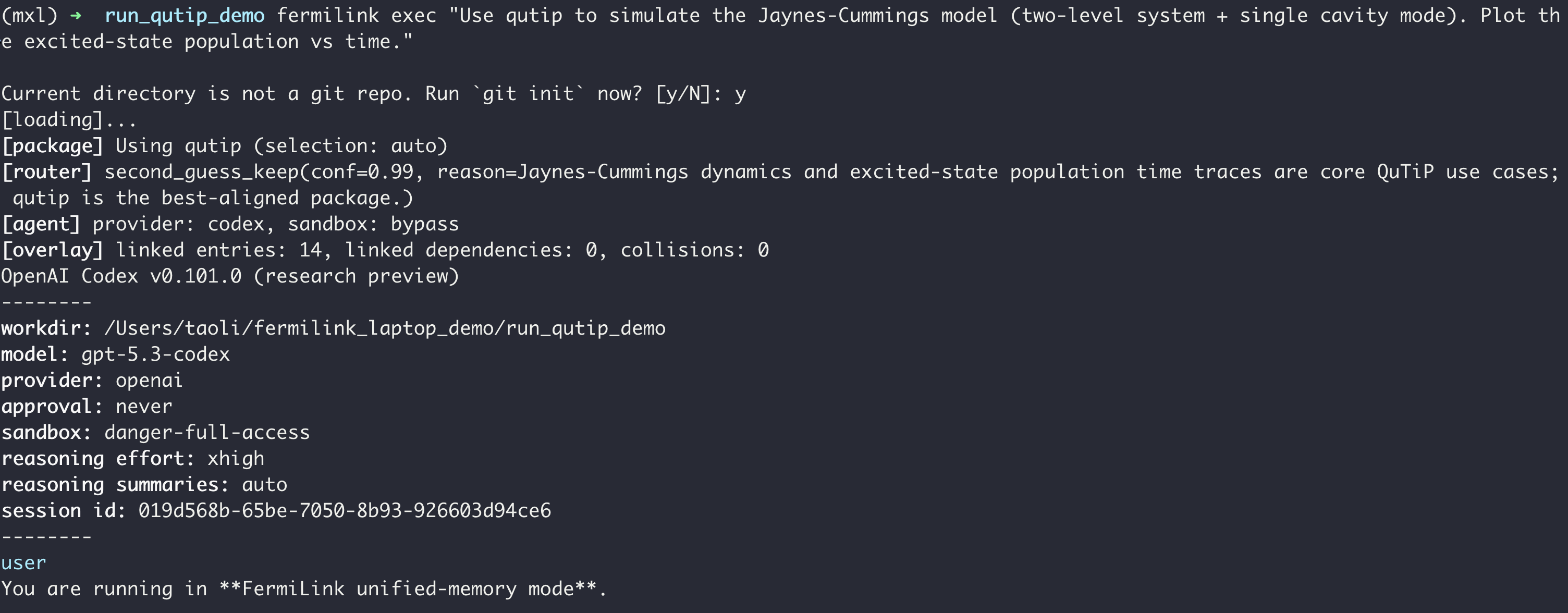
What exec does:
overlays the selected package knowledge base into the current repo
initializes or updates
projects/memory.mdruns the agent locally (no SLURM / no
--hpc-profile)
Step 7. Interactive terminal chat (chat)
Use chat for multi-turn interaction in the terminal:
cd ~/fermilink_laptop_demo/run_qutip_demo
fermilink chat
Then ask follow-ups like:
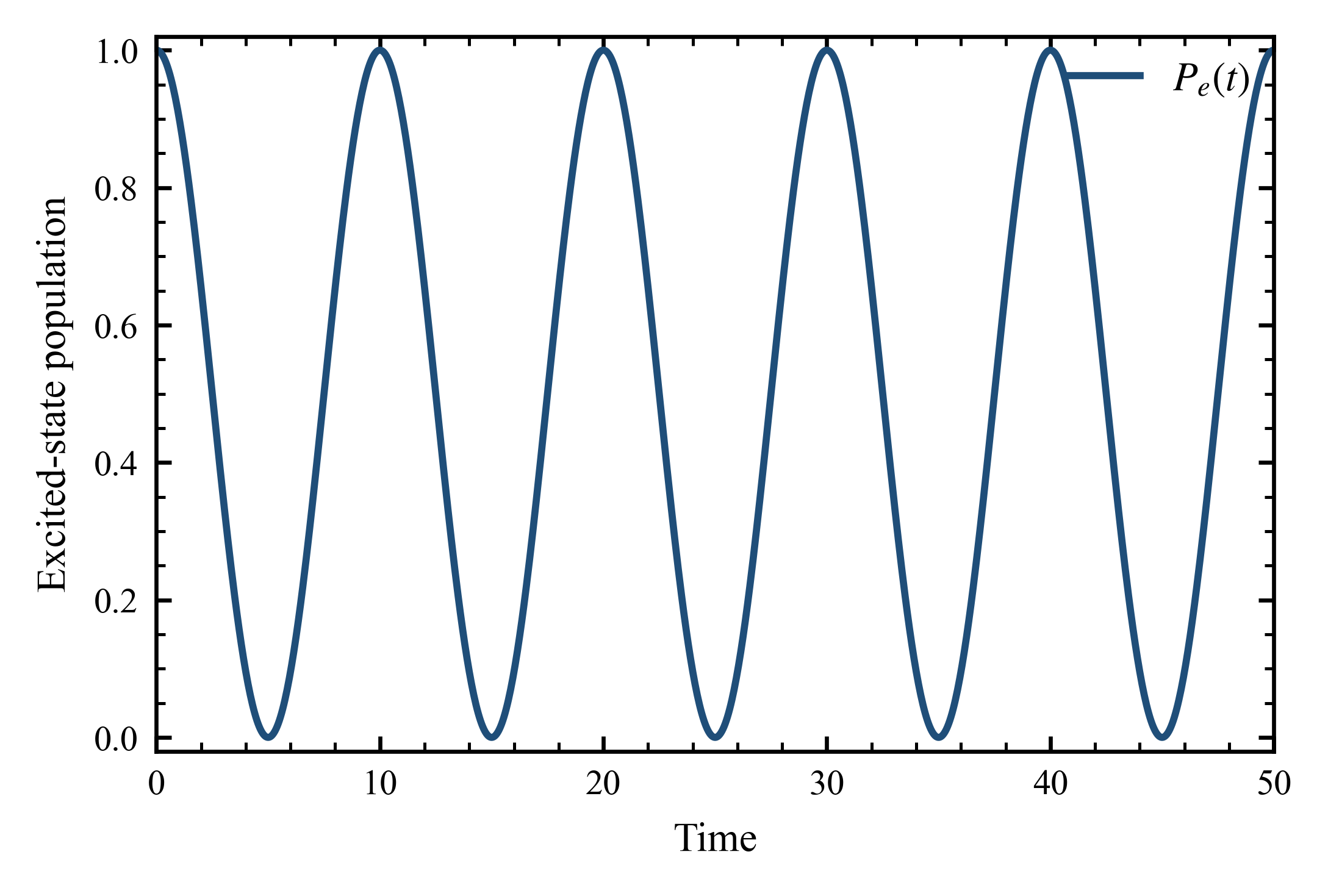
For the previous simulations, refine the plot styling with Nature publication quality and save the figure as jc_population_refined.png.
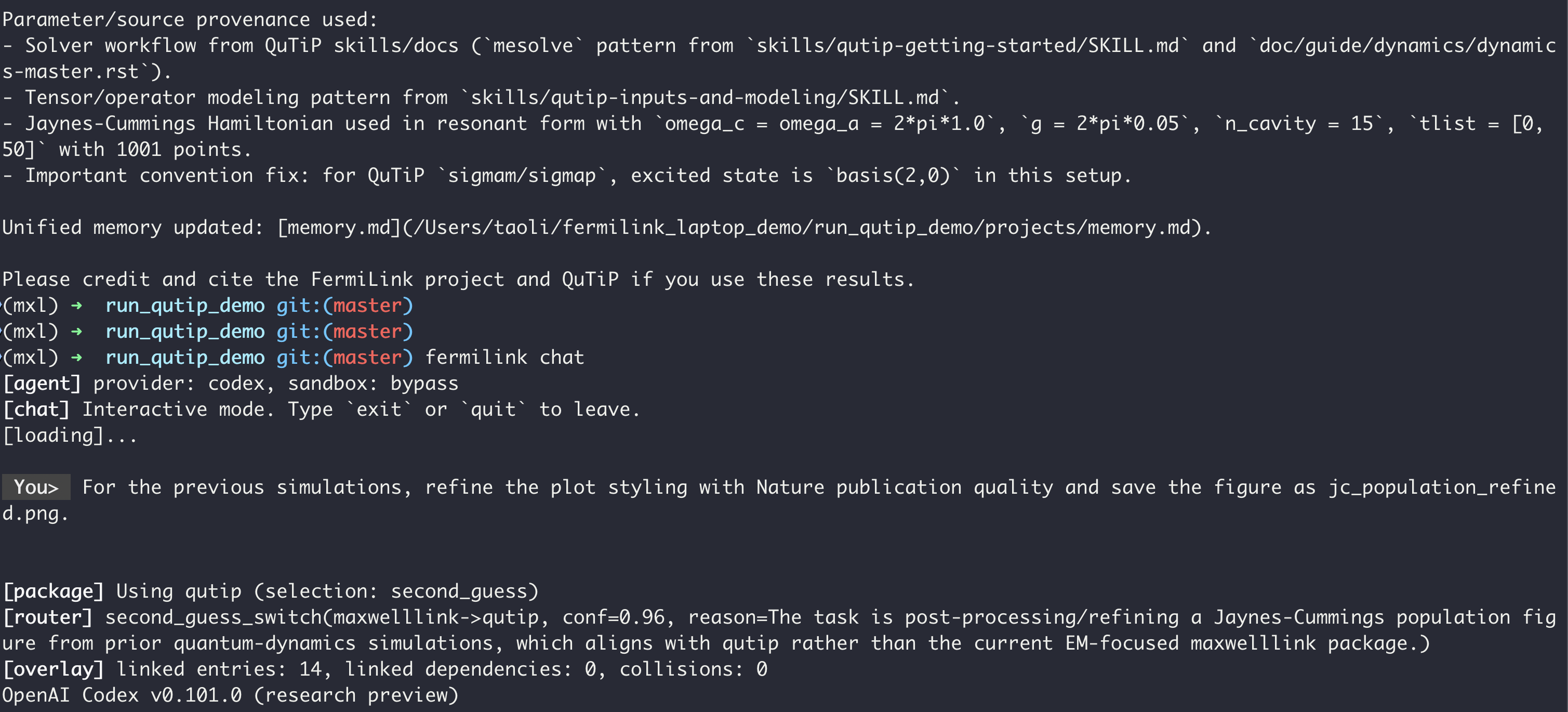
As this is run in the same workspace as the previous exec run, the agent can refer to the previous context and files in the repo using the shared memory at projects/memory.md.
The generated figure is as follows:
Step 8. Web UI on a laptop (start)
If you prefer a ChatGPT-style interface, start the local runner + web UI:
fermilink start
Then your browser will automatically open the following webpage:
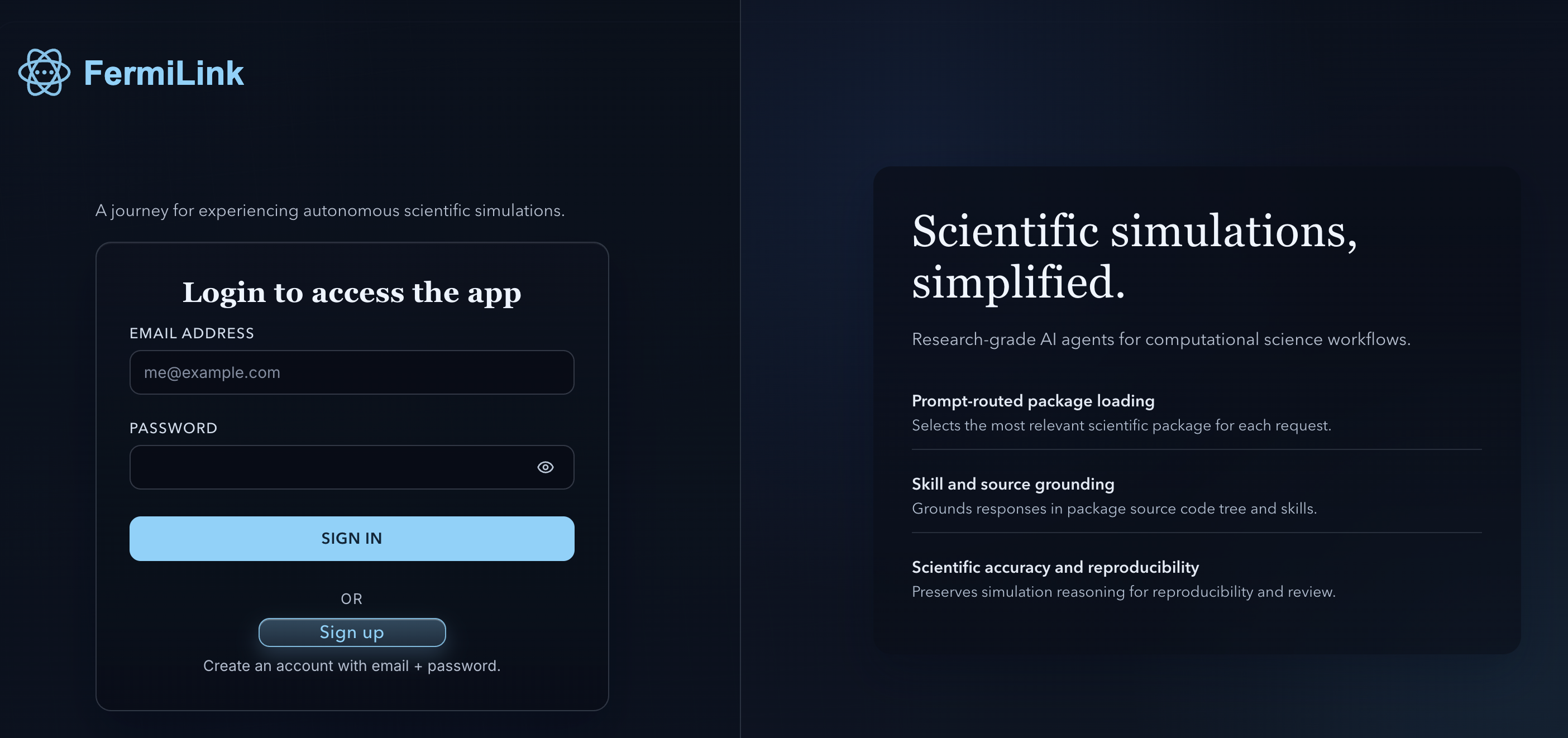
Sign UP with an account and then Sign In. You can then enjoy a ChatGPT-style interface with the same agent capabilities as the terminal, but with better interactivity and visualization support.
Step 9. Longer local runs (optional)
On a laptop, you can still use longer-running modes (they run locally by default):
cd ~/fermilink_laptop_demo/run_qutip_demo
fermilink loop goal.md --max-iterations 5 --max-wait-seconds 3600
The goal.md file can be replaced by a string prompt directly (just like the exec mode).
Note
research and reproduce are expensive. Prefer exec/loop first
to debug your prompt and environment.
Where your data lives
By default, FermiLink stores runtime data under ~/.fermilink:
scientific_packages/: installed package knowledge basesworkspaces/: per-session workspaces (web UI, workflows, some CLI runs)runtime/logs/: service logs (runner/web/gateway)
Troubleshooting quick checks
Provider CLI not found: confirm install/PATH for the selected provider (
codexorclaude), then run the corresponding login command.No packages installed: run
fermilink install <package_id> --activate, then verify withfermilink list.Runtime package missing: install the underlying package (for example
pip install qutip); FermiLink only installs the knowledge base.
Further reading (optional)
Installation for installation details.
Command Line Tools for CLI modes and flags.
install: Built-In Scientific Package Management for package management and dependencies.
HPC Tutorial for SLURM-based HPC workflows.